


If you’ve been trying to play Fortnite or Valorant competitively and suddenly got blocked from joining a tournament or ranked mode, it’s likely due to a system-level security setting. Both games now require certain features to be enabled for anti-cheat and integrity checks, specifically Secure Boot and TPM 2.0.
That’s when you’ll see messages like:
❌ “You need TPM 2.0 enabled”
❌ “Secure Boot enabled!”
You’re not alone. This issue is super common for competitive players — especially during FNCS events.
In this guide, I’ll show you exactly how to fix the Secure Boot and TPM 2.0 error so you can start playing tournaments without issues.
Why This Error Happens
Fortnite checks your system for two security settings: TPM 2.0 and Secure Boot.
If either of them is disabled in your BIOS, Fortnite will block you from entering comp modes – even if your PC is fully capable.

Step 1 – Enable Secure Boot
Secure Boot makes sure your PC only runs trusted software when it starts.
Check if Secure Boot is enabled:
- Press Windows + R
- Type
msinfo32and press Enter - Look for Secure Boot State
- If it says Off, you’ll need to turn it on in the BIOS

How to enable Secure Boot in BIOS:
- Restart your PC
- While it boots, press your BIOS key repeatedly – usually F2, DEL, or F10
- In BIOS, find the Boot or Security tab
- Set Secure Boot to Enabled
- If it’s greyed out, set CSM (Compatibility Support Module) to Disabled first
- Press F10 to save and exit

Step 2 – Enable TPM 2.0
TPM (Trusted Platform Module) is another requirement. Fortnite uses it as part of its anti-cheat checks.
Check TPM status:
- Press Windows + R
- Type
tpm.mscand press Enter - If it says “TPM not found”, you’ll need to enable it in BIOS
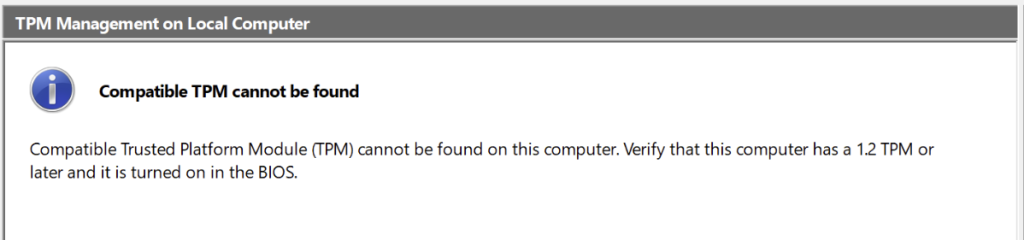
Enable TPM in BIOS:
- Reboot and enter BIOS again
- Go to the Security or Advanced tab
- Find and enable:
- PTT (Intel CPUs)
- fTPM (AMD CPUs)
- Save and exit with F10

Final Check & Wrap-Up
Once you’ve enabled Secure Boot and TPM 2.0 in your BIOS, boot back into Windows and open the Start menu.
Type msinfo32 and press Enter. You should now see:
- Secure Boot State: On
- TPM Available: Yes (or similar confirmation via
tpm.msc)
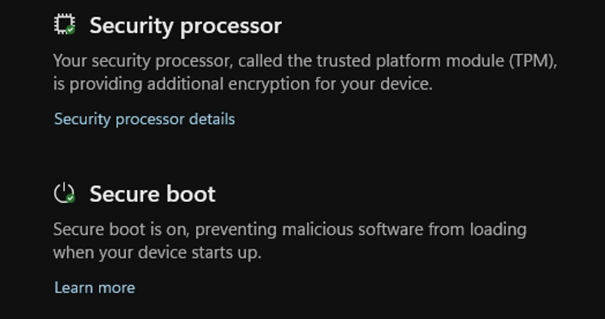
You can also go to Settings > Privacy & Security > Device Security, where both Security processor and Secure boot should be marked as enabled — like this:
If Fortnite still shows the error, do one more restart. That usually clears it.
And that’s it ✅ – you’re now fully ready to play FNCS or any other Fortnite tournament without errors. If this helped, be sure to check out our other guides!